
In the era of AI, you don’t need a massive engineering team to build a smart assistant that knows your product catalog inside and out. Whether you are managing a small e-commerce store, a home lab inventory, or a specialized hardware price list, you can build a functional AI agent in under 30 minutes.
This guide will show you how to connect n8n, Google Sheets, and Google Gemini to create an agent that can answer questions like “Do we have any NUC computers in stock?” or “What is the price of the Keychron Q6 Max?”
Why This Matters
For small inventories (under 100 items), traditional database queries are often overkill. By using the “Full List” method, we give the AI the entire context of our stock, allowing it to handle:
- Typos: Understanding “nuc” even if the sheet says “ASUS NUC 15 Pro+”.
- Categories: Identifying that a “Voyager Focus 2” is a headset.
- Complex Logic: Answering “What’s the cheapest white keyboard you have?”
Requirements
To follow this tutorial, you only need two things that are available to everyone:
- Google Sheets: To act as your “database.”
- Google Gemini API Key: Available for free (within limits) via Google AI Studio.
Step 1: Prepare Your Data
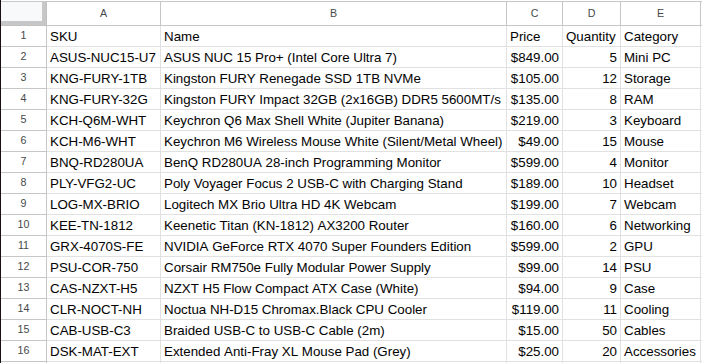
Create a Google Sheet with your inventory. Use clear headers in the first row. To save time, you can check out this example Google Sheet to see exactly how to format your data.
Step 2: The n8n Workflow Architecture
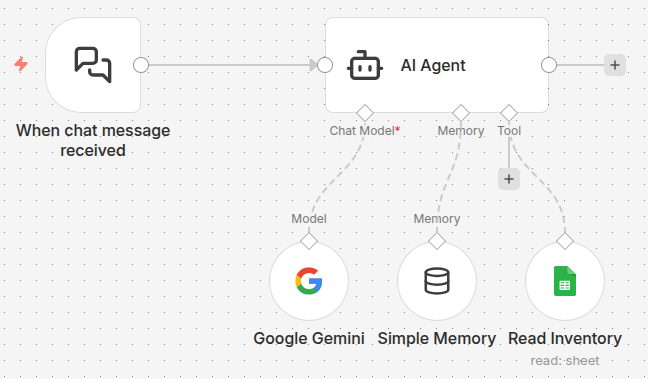
We will build a workflow that uses the AI Agent node. This node acts as the “brain,” deciding when it needs to look at the sheet and remembering what you said previously.
1. The Trigger
Use the n8n Chat Trigger. This provides the chat interface you see in the n8n dashboard.
2. The Memory (The Notebook)
Add a Simple Memory node.
- Why? Without memory, the AI won’t understand follow-up questions. If you ask “How much is the NUC?” and then “Is it in stock?”, the AI needs memory to know that “it” refers to the NUC.
- Setting: Connect this to the Memory input of the AI Agent.
3. The Google Sheets Tool
Add a Google Sheets node and connect it to the Tool input of the AI Agent.
- Resource: Sheet Within Document
- Operation: Get Row(s)
Step 3: Configuring the Brain (Prompts & Settings)
The secret sauce is the System Prompt. This tells the AI how to behave and how to use the data it receives.
System Prompt Example:
You are a helpful inventory assistant for a high-end hardware store.
You have access to a tool that returns our entire product list.

When a user asks about a product:
1. Call the tool to get the current inventory.
2. Search the list for the most relevant items (handle typos and partial matches).
3. Use the conversation memory to understand follow-up questions (e.g., if a user says 'is it in stock?', refer to the previously mentioned item).
4. Provide the product name and price as the primary response.
5. Provide stock levels or quantities if the user asks about availability or stock.
6. If an item is out of stock, suggest a similar alternative from the list.
Step 4: Testing the Agent
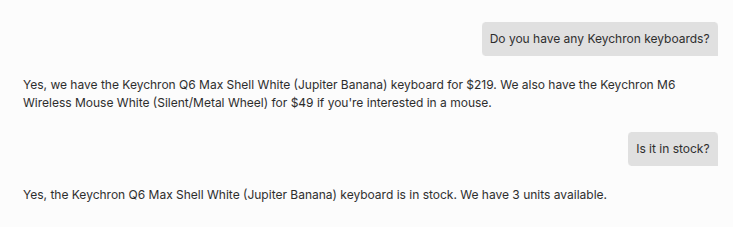
Once configured, open the chat window. Try a multi-turn conversation to see the memory in action.
Example Conversation:
- User: “Do you have any Keychron keyboards?”
- AI: “Yes! We have the Keychron Q6 Max Shell White for $219.00.”
- User: “Is it in stock?”
- AI: “Yes, we currently have 3 units of the Q6 Max available.”
Limitations and The “500-Row Wall”
While this approach is the simplest to set up, it has its limits:
- Context Limits: If your sheet has 1,000 rows, the list will be too long for the AI to read in one go.
- Cost: Sending a massive list to the AI for every single message can get expensive in API tokens.
- Speed: Processing a huge text block takes longer for the AI.
What’s next?
If your inventory is growing, you need a way to “search” before “thinking.” In our next post, we will cover the Vector Database solution (RAG), which allows your agent to handle thousands of items with lightning speed and lower costs.
You can find the full n8n workflow template for this project here.